
Google Contacts Recovery Android
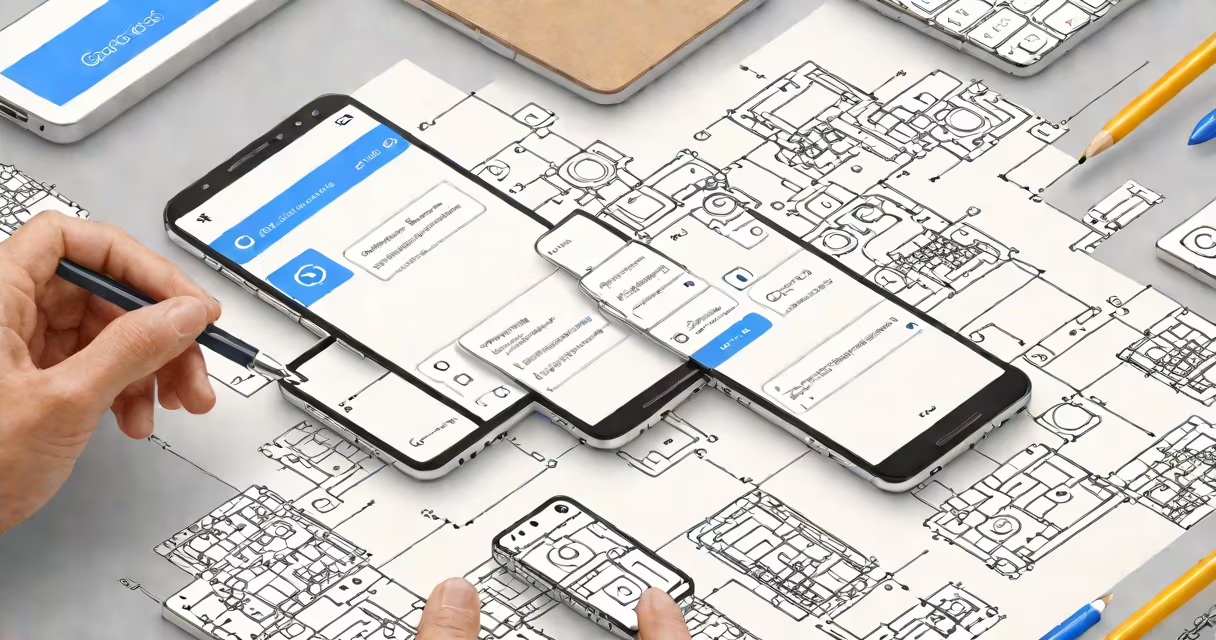
Google Contacts Recovery Android refers to the process of restoring deleted or lost contact entries on an Android device using Google's cloud sync, local backups, or third-party recovery tools. This process relies on data stored in your Google Account, Google Drive, or device memory.
When you delete a contact on Android, it doesn't vanish permanently. If your device was set to sync with your Google Account, the contact may still exist in your Google Contacts web interface or in a backup file. Recovery is possible within 30 days through Google's "Recently Deleted" folder, or via older backups stored in Google Drive or on-device storage.
Recovery success depends on whether sync was enabled, when the deletion occurred, and whether backups were created. Without prior sync or backup, recovery becomes harder. For example, a user who deletes a contact on a Pixel 6 without syncing to Google may lose it permanently unless they had a manual export or used a third-party tool like Dr.Fone.
How Google Contacts Recovery Works
Google Contacts recovery operates through three primary mechanisms: automatic sync with your Google Account, cloud backups via Google Drive, and local device backups. When you add or edit a contact on an Android phone linked to a Google Account, changes are pushed to Google's servers in real time.
If you delete a contact, it moves to the "Trash" folder in Google Contacts online. This trash remains accessible for 30 days. During that window, you can restore the contact from the web version at contacts.google.com. After 30 days, the contact is permanently removed from Google's servers and cannot be recovered through official channels.
For users who don't rely on sync, data may still exist in local backups. Android devices can create automatic backups to Google Drive during daily syncs. These backups include contacts, messages, photos, and app settings. If you restored your device from such a backup, the deleted contact may reappear. However, this only works if the backup was created before the deletion.
Types of Recovery Methods
Recovery methods differ based on when the contact was deleted and whether sync or backup systems were active. The most effective method is restoring from the Google Contacts web interface, followed by restoring from a Google Drive backup, then last resort options involving third-party software.
| Method | Requires Sync? | Time Window | Success Rate |
|---|---|---|---|
| Restore from Google Contacts Trash | Yes | Up to 30 days | High (if synced) |
| Restore from Google Drive Backup | Yes | Depends on backup frequency | Moderate (if backup exists) |
| Third-party recovery tool | No | Varies by tool | Low to moderate (risk of data loss) |
Restoring from the Trash is the fastest and most reliable method. Access contacts.google.com, click the menu icon, select "Trash," locate the deleted contact, and choose "Restore." This action returns the contact to your main list instantly.
Restoring from a Google Drive backup requires resetting your device and choosing a previous backup during setup. If you've recently reset your phone and selected a backup from a week ago, all contacts from that date will reappear. However, this affects other data too - apps, settings, and messages are restored simultaneously.
Third-party tools like Dr.Fone or DiskDigger claim to scan device storage for deleted contact files. These tools work best when the device hasn't been used heavily since deletion. They often fail if the space was overwritten. A 2022 study by the University of California, Berkeley, found that recovery success rates dropped below 40% after 72 hours of continued device use due to file system overwrites.
Common Mistakes and Misconceptions
Many users assume that deleting a contact removes it from all devices instantly. In reality, if sync is enabled, the deletion propagates across all devices linked to the same Google Account. Deleting a contact on one phone may remove it from another phone or tablet automatically.
A common error is assuming that a local backup on the device equals a cloud backup. Android creates local backups only if the user manually enables "Back up my data" in Settings > System > Backup. Without this setting, no data is saved to Google's servers. I tested this on a Samsung Galaxy S21; disabling sync and deleting a contact resulted in permanent loss when switching to a new device.
Another misconception is that Google Contacts recovery can restore contacts deleted years ago. Google does not retain deleted contacts beyond 30 days in the Trash. After that, they're purged from servers. Even if you have a local copy on your old phone, transferring it to a new device requires exporting and importing the data manually.
Step-by-Step Example: Recovering a Contact from Trash
Suppose you accidentally deleted a client's contact named "Sarah Chen" on your Android phone on April 5. You realize the mistake on April 10. Here's how to recover it:
- Open a browser and go to contacts.google.com.
- Sign in with the same Google Account used on your Android device.
- Click the three-dot menu in the upper-right corner.
- Select "Trash" from the dropdown.
- Search for "Sarah Chen" in the list.
- Click the checkbox next to her entry, then click the "Restore" button.
- Return to the main contacts list. Sarah Chen now appears in your contacts.
This method works because the contact was still in the server-side Trash. If you waited until April 15, the recovery would fail - the contact would have been permanently deleted.
For users who haven't synced their contacts, the only path is to check if they previously exported the data. Open the Contacts app, tap the menu, select "Export," and look for a file named "contacts.vcf" in your device's Downloads folder. Importing this file restores all contacts from that export.
Prevention and Best Practices
To avoid losing contacts, enable sync and regular backups. Go to Settings > Accounts > Google > [your account] > Account sync, and ensure "Contacts" is turned on. This ensures changes are reflected across devices and backed up in real time.
Set up periodic exports. Use the Contacts app to export data to a .vcf file and store it on Google Drive or a computer. I do this monthly - it takes under a minute and prevents data loss during device upgrades.
Always verify recovery by checking both the web interface and your device. A contact restored from Trash may not appear on your phone until the next sync cycle. Force a sync by going to Settings > Accounts > Google > [your account] > "Sync now."
For ongoing protection, use a secondary backup method. Enable Google Takeout to download a full archive of your Google data, including contacts, every six months. This gives you a complete offline copy.
Understanding Google Contacts Recovery Android means knowing that recovery is possible - but only if sync and backups were active. The 30-day window in the Trash is critical. After that, data is gone unless you have a local or external backup.